-1721172a-5ffa-48c2-a1a8-ad6d99053ef3.png)
How to setup the pre-order functionalityUpdated 6 months ago
The theme includes built-in pre-order functionality, allowing you to sell products before they are available.
How it works
Pre-orders are automatically enabled using a product tag.
- Go to Shopify Admin > Products
- Open the product you want to sell as a pre-order
- Add the tag
preorder - Save the product
Once the tag is added:
- All “Add to cart” buttons will automatically change to “Pre-order”
- This applies across product pages, product cards, and featured sections
If the tag is removed, the product will return to the normal purchase flow.
Product requirements
To ensure customers can place a pre-order, the product must allow purchasing.
We recommend one of the following setups:
- Inventory is available, or
- Continue selling when out of stock is enabled, or
- Inventory tracking is disabled
If none of these are configured, the product may show as unavailable and customers won’t be able to pre-order.
Optional: Shopify Flow automation
If you are using Shopify Flow, you can automatically tag pre-order orders for easier processing.
Example flow:
- Trigger: Order created
- Condition: Order contains a product with tag
preorder - Action: Add order tag (e.g.
pre-order)
This helps you:
- Identify pre-order orders instantly
- Separate them from in-stock orders
- Trigger fulfillment or notification workflows
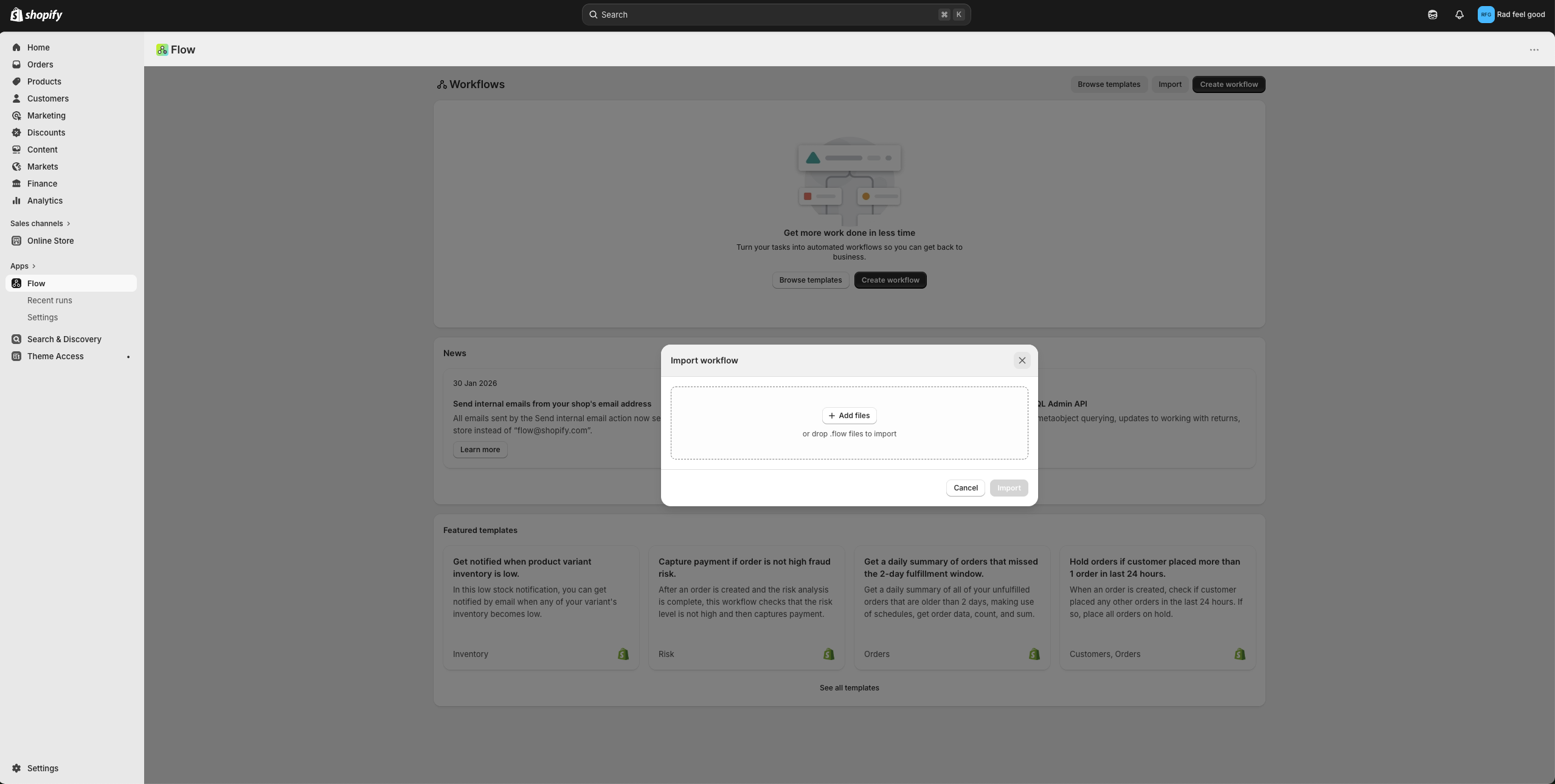
Shopify flow - Tag preorder orders
- Install the Shopify Flow app https://apps.shopify.com/flow
- Download this zip
- Unzip the folder
- Import the file via the Shopify Flow app.